
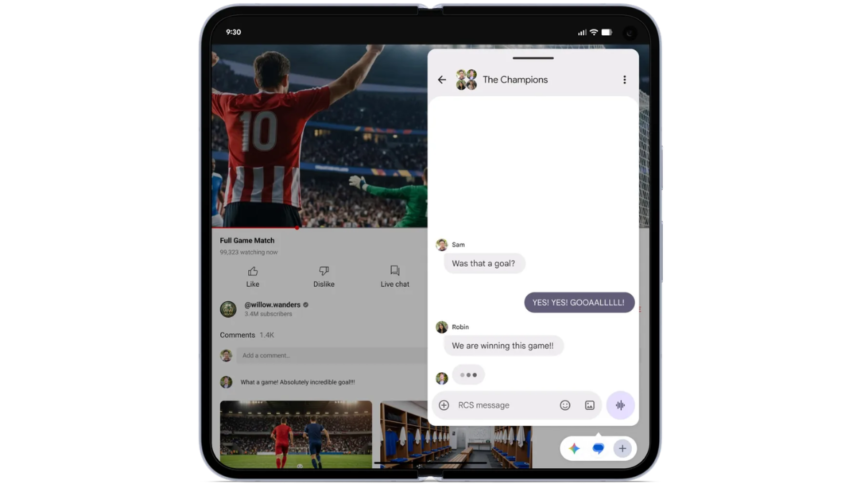
Google started rolling out the first stable version of its latest Android 17 update earlier this month. The latest update introduced various new features, fresh animations, and security and privacy tools, now available on select Google Pixel devices. The new Android 17 features are claimed to enhance multitasking and gaming on foldable phones, tablets, and candy bar-style smartphones. Available for devices for Google Pixel 6 and newer models, the Google Pixel Fold, and the Google Pixel Tablet, the Android 17 update introduced the Bubbles functionality that lets users stack multiple apps as floating windows for faster app switching and enhanced multitasking.
If you use a compatible Google Pixel device and have installed Android 17, we have prepared a guide for you on how to use the new Bubbles feature. The Android 17 update will also be rolled out to select Android handsets from other brands in the future with this new multitasking functionality. You can read about other Android 17 features here.
What Are Bubbles?
The new Bubbles functionality is a new multitasking feature that ships with the latest Android 17 update. The functionality lets users convert any app into a compact floating window by long-pressing the app icon. Users can view multiple apps at once as Bubbles, as the floating windows are stacked on top of each other for easy access.
Google has also introduced a dedicated Bubble Bar, available only for devices with larger screens, such as tablets and foldables. This bar displays all the apps that have been converted into Bubbles and are currently in use, acting as a dock. It appears in the bottom-right corner of screens for convenience. Users can also minimise Bubbles or switch to full-screen mode directly from the Bubble Bar.
How to Create and Use Bubbles on Android 17?
-
To create and use Bubbles on your Android phone, open your handset and go to your home screen or the app tray.
-
Then, tap and hold the app icon you want to use.
-
Now, in the pop-up menu, tap on the Bubble button.
-
The app will now appear as a floating window. (If you have multiple apps open as Bubbles, they are grouped.)
-
Alternatively, if you have a Google Pixel 10 Pro Fold or Pixel Fold, you can swipe up slowly from the bottom of the screen to open the taskbar.
-
Now, you can repeat steps two and three to create multiple Bubbles.
How to Expand, Collapse, or Close Bubbles on Android 17
- You can expand a Bubble by clicking on the Bubble icon.
- To minimise it, you can tap on the Bubble icon again or tap anywhere outside the Bubble.
- To close it, you must tap and hold the Bubble icon > drag and drop it on the Close button denoted by an X or cross.
How to Switch Between Bubbles on Android 17
- You can simply switch between app Bubbles by tapping on the Bubble icon.
- Then, click on the app icon you wish to use.
- Alternatively, you can directly tap on the app icon in the Bubble bar if you have a Google Pixel 10 Pro Fold or Pixel Fold.
How to Move Bubbles on Android 17
- To move the Bubbles, simply tap and hold the Bubble bar.
- Now, you can drag and drop the Bubble anywhere on the screen to move it.
How to Pin the Bubbles Taskbar on Google Pixel 10 Pro Fold or Pixel Fold
- To pin the Bubbles Taskbar on your Google Pixel 10 Pro Fold or Pixel Fold, swipe up from the bottom of the screen.
- In the taskbar, press and hold on the “divider line”.
- Now, turn on the Always show Taskbar option from the pop-up menu.
FAQs
1. Can I switch between apps directly from the Bubble bar on Android 17?
Yes, if you have a tablet, a Google Pixel 10 Pro Fold, or the Pixel Fold, you can simply tap on the app icon you wish to switch to in the Bubble Bar.
2. Is the new Bubbles feature available on all Android smartphones?
No, Google has released the Android 17 update and the Bubbles feature only for select Pixel devices. However, other compatible Android phones are expected to receive the update soon.
3. How can I create Bubbles on my Google Pixel device running Android 17?
You can tap and hold on any app icon and select the Bubbles button to convert any app into a floating window.
Get your daily dose of tech news, reviews, and insights, in under 80 characters on Gadgets 360 Turbo. Connect with fellow tech lovers on our Forum. Follow us on X, Facebook, WhatsApp, Threads and Google News for instant updates. Catch all the action on our YouTube channel.